
Shipping Connector Workstation Setup Guide
SCW synchronizes shipping data between Business Central and your shipping workstations.
** Note: SCW is required when using (external to Business Central) shipping software (e.g., UPS/WorldShip).
- SCW must be installed on each workstation where shipping software is used.
Step 1 - Install Shipping Connector Workstation
On the target workstation, download the installer from the website - Workstation Download
Note: You may encounter security dialogs warning about the download - this is common.
Click the 'Keep' option and the 'Keep anyway' option to proceed.
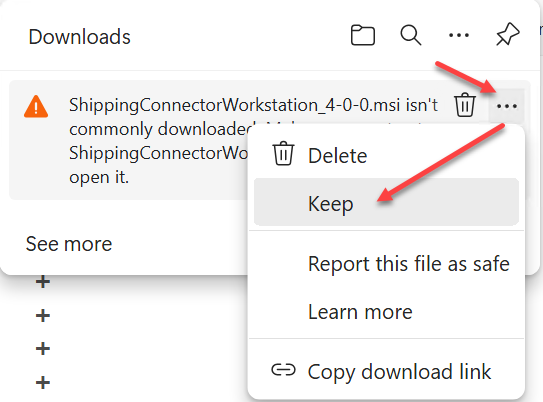
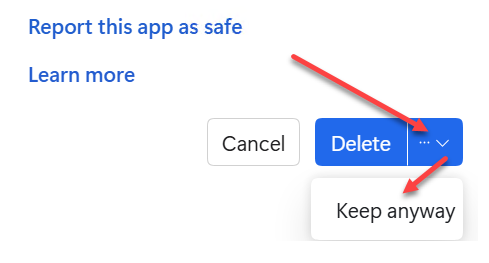
The installation will begin.
Note: You may need to enter Local Administrator credentials to install - this is common.
Step 2 - Run the Configuration tool
When installation completes, the configuration tool will launch.
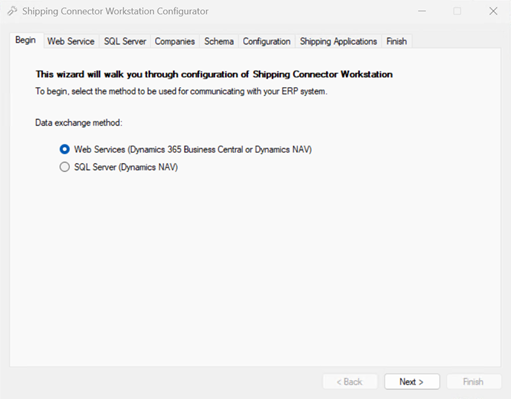
Select Web Services for Business Central, then click Next.
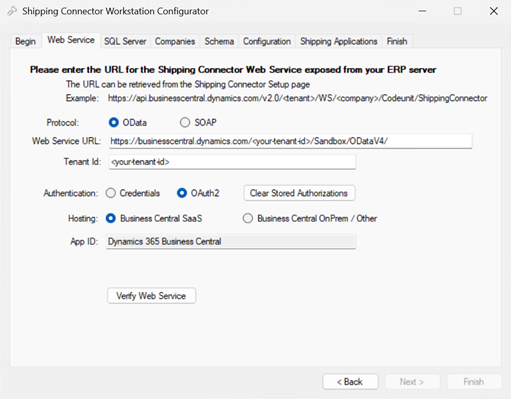
Enter the Shipping Connector Web Service URL.
You can find the URL on the Shipping Connector Setup page in Business Central.
Select Protocol = OData
Select Authentication = OAuth2
Note: For BC/Onprem you can use Credentials, Web Service Access Keys, or OAuth2.
OAuth2 setup for onprem is a bit more involved - it is covered in another guide.
When you press the "Verify Web Services" button, a Microsoft login dialog will display.
Enter the credentials for the BC User account to be used for data sync.
Important Note: The BC User account must have edit permissions for the orders being shipped.
If the verification fails, it is usually due to bad credentials or insufficient permissions.
After sucessfully verifying the data connection, click the Next button.
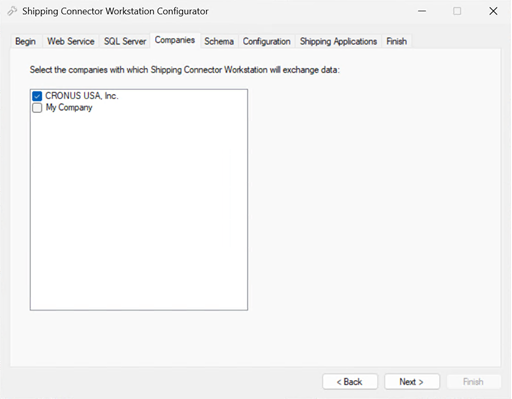
Select the company (or companies) for data sync.
Yes - you can ship from multiple companies.
Just know, orders are stored in a single table, so their order numbers (primary keys) must not collide.
When shipping from multiple companies, use distinct No. Series to avoid collisions.
Click the Next button.
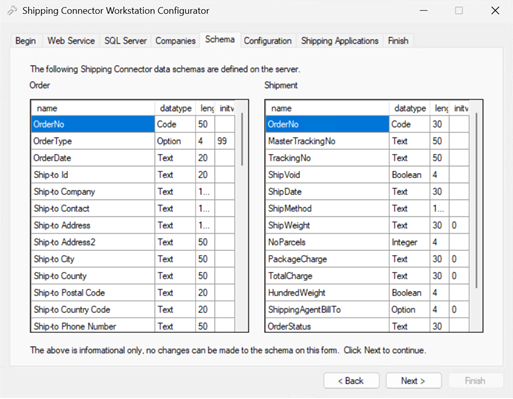
The schema tab is read-only, strictly for confirmation.
It displays the data configuration for data sync.
Click the Next button.
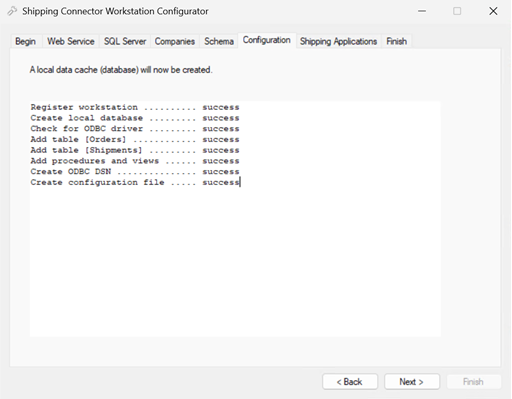
Configuration success.
Click the Next button.
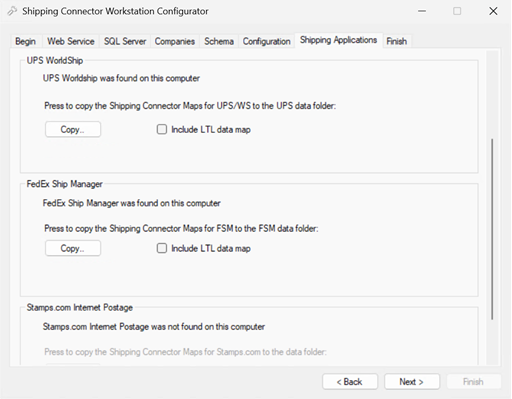
When using UPS/WorldShip, FedEx/Ship-Manager, or USPS/Stamps.com, you need to copy data maps.
Press the Copy button for those that you will use.
Note: for USPS/EndiciaPro, Purolator, or other shipping software, a manual configuration is needed.
Contact us for assistance.
Click the Next button.
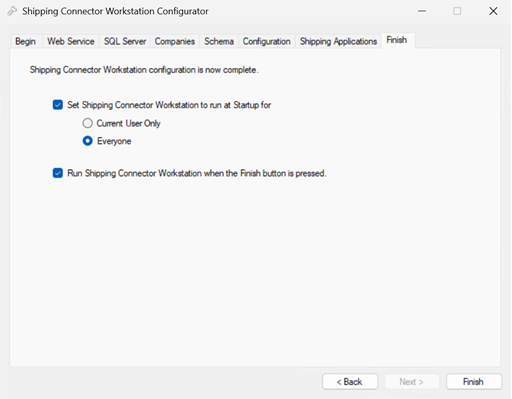
On the Finish tab, select your startup preference.
Click the Finish button.
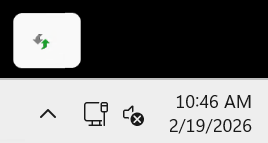
Shipping Connector Workstation will display in the system tray.
Setup is now complete.

Tip: Drag the icon from the (hidden) icons container onto the tray so it will always be visible.
Step 3 - Confirm Setup
To verify that SCW is working correctly, open the Settings dialog.
Double click on the SCW tray icon - the Settings dialog will display.
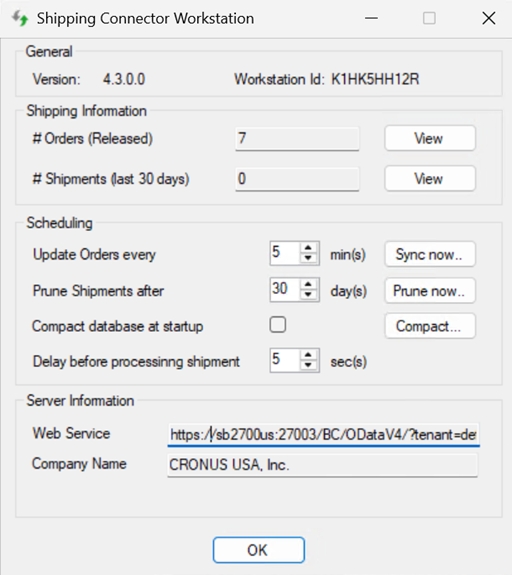
The Orders field will show the count of orders (retrieved from Business Central) that are ready to ship.
Note: If the count is zero, reopen and release a few orders in Business Central, then resync.
Click the View button to see the list of orders.
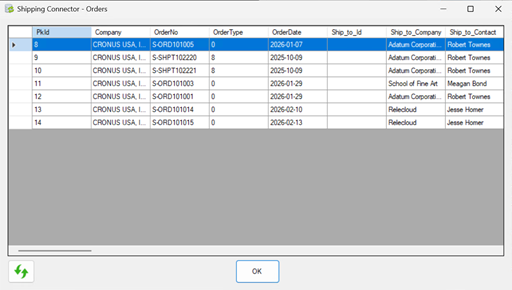
The Orders dialog displays the order detail as retrieved from Business Central.
Tip: Click on the far left column to select a row, then Ctrl-c to copy the OrderNo field to the clipboard.
Note: The Orders dialog is read-only.
After creating a few shipments, open the Shipments dialog to see the shipping details.
Back to the Settings...
Update Orders every... sets the synchronization period.
Prune Shipment after.. trims the shipments in the local database.
Delay before process.. gives the shipping software time to finish exporting its data.
Compact database...... runs a compact on the local databasee.
Note: you must first close all shipping software for compact to succeed.
Troubleshooting
It's software... sometimes it don't work..
If the icon turns red, something's not right.
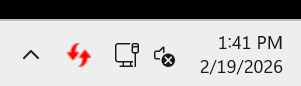
If the problem is obvious, fix it.
If it's not obvious, run the configuration tool -- right click, Tools > Configure.
Note: make sure to close the shipping software before running the configuration tool.
If the problem resolves, great.
If not, then contact us -- we'll help you sort it out.